How to get your
YouTube Stream Key
Your stream key is a private code that tells YouTube where your video is coming from. You'll need it to connect the Cricast app to your YouTube channel. It only takes about a minute to find.
Open studio.youtube.com in your browser. Make sure you're signed in to the correct YouTube channel you want to stream to.
In the top-right corner of YouTube Studio, click the Create button (the camera icon with a +). From the dropdown, select Go live.
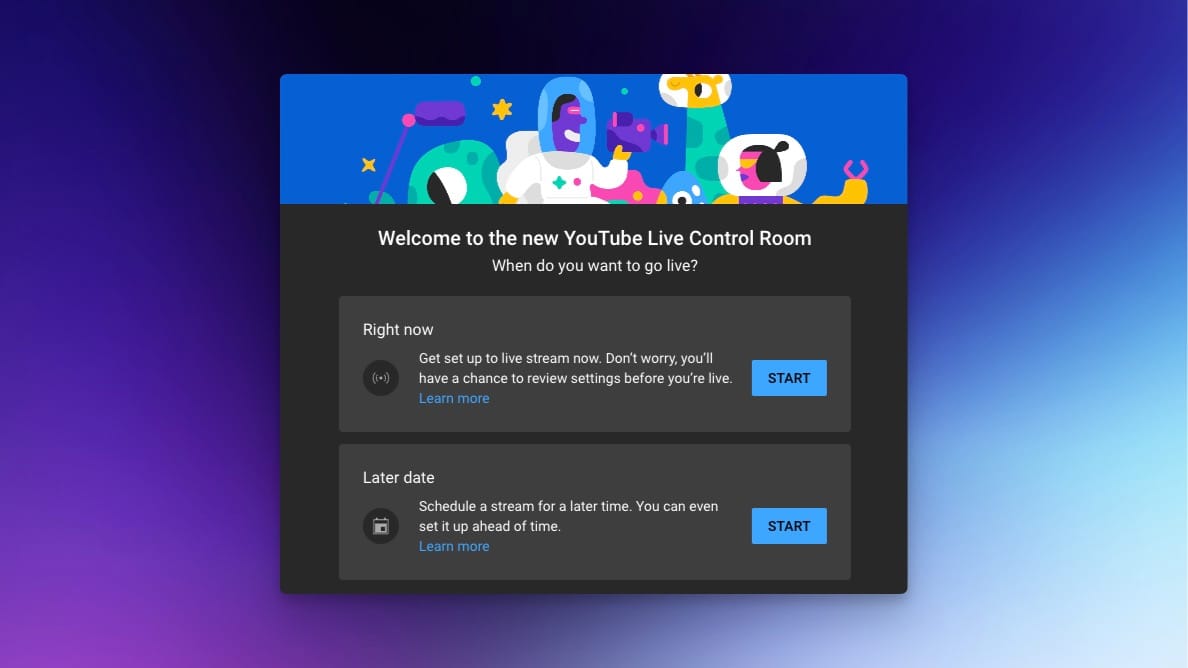
On the "How do you want to go live?" screen, click Start next to Right now (or Later date if you want to schedule the stream in advance). Then click Go next to Streaming software.
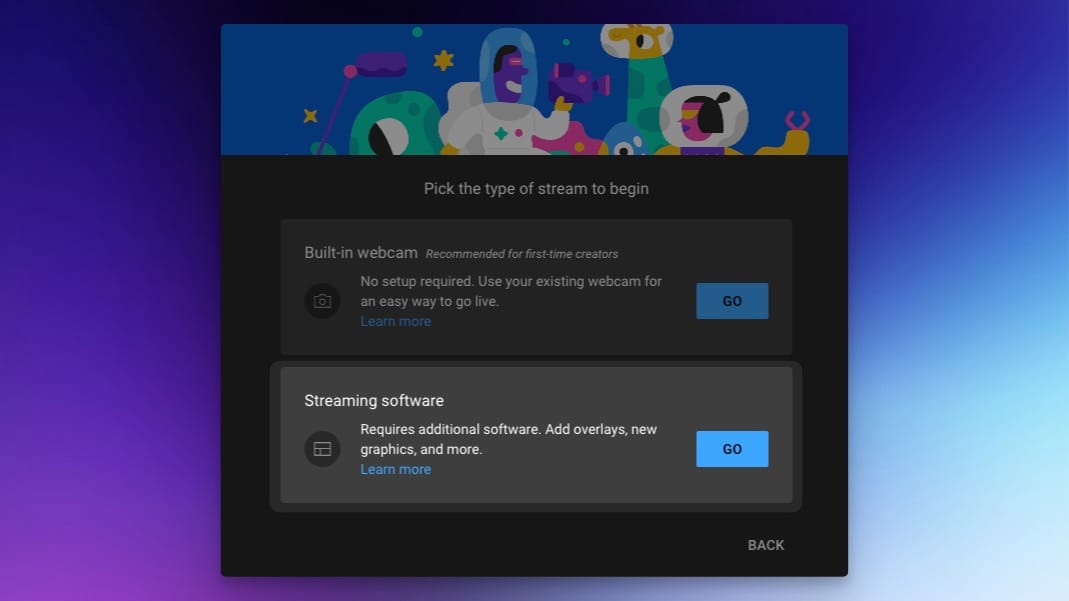
On the Stream Settings page, find the Stream type dropdown and select HLS (not RTMP). Cricast uses HLS to deliver the best quality over a mobile connection. Once selected, your HLS stream key will appear below.

Click Copy next to the stream key to copy it to your clipboard.

Open the Cricast Android app, go to your match, tap ▶ YT, and paste your stream key into the field. Tap Save — you're ready to go live.
Ready to stream your first match?
Book a 30-minute onboarding call and we'll get your club set up with live scoring and streaming — start to finish.
📅 Book a call to get started